
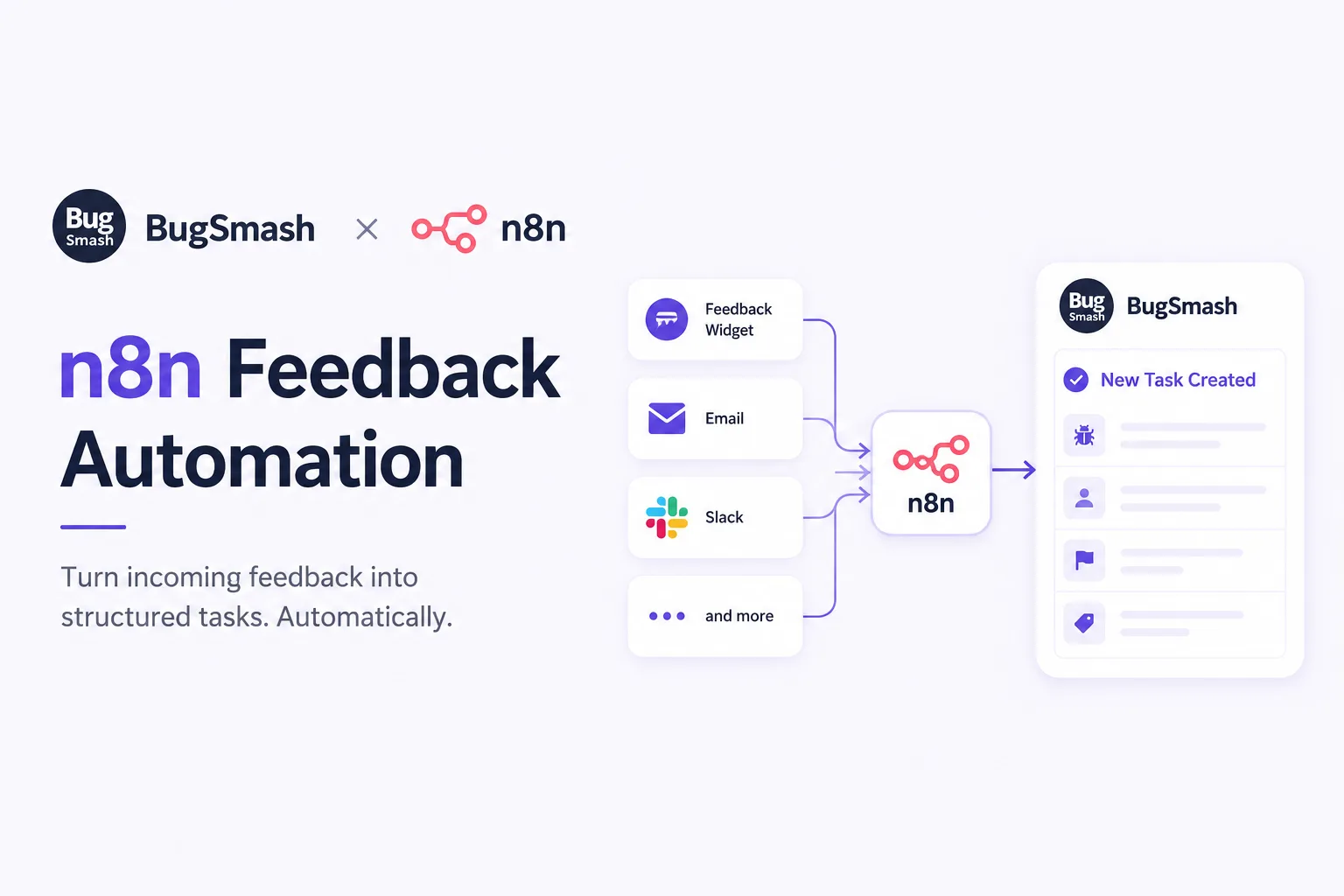
If your team collects bug reports and feature requests from five different channels and then manually copies them into your task board, you’re wasting hours every week. Connecting BugSmash with n8n lets you build a visual workflow that automatically converts incoming feedback into structured, assigned tasks — no code required. This blog walks through why n8n feedback automation matters, how the BugSmash-n8n connection works, and how to set up your first workflow in under 30 minutes.
Every product team knows the drill. A user reports a bug on Slack. Another sends an email. A third leaves a comment on your feedback widget. Someone on your team has to notice all of it, decide what’s actually a bug versus a feature request, write it up properly, and drop it into the task board. By the time that happens, a day (or three) has passed, and half the original context is gone.
This is exactly the gap n8n feedback automation is built to close. Instead of a human being the connective tissue between “someone reported something” and “there’s a task for it,” you build a workflow once, and it runs itself every single time.
Why Manual Feedback Triage Doesn’t Scale
Most teams don’t lack good intentions — they lack time. As feedback volume grows, manual triage breaks down in predictable ways:
- Reports sit in inboxes for days before anyone logs them
- Duplicate tasks get created because nobody checked existing tickets
- Important context (screenshots, browser info, user details) gets lost in copy-paste
- Bugs and feature requests get mixed together with no clear priority
- Different team members log tasks with wildly inconsistent formatting
None of these are people problems. They’re workflow problems. And workflow problems are exactly what automation tools like n8n were built to solve.
What Makes n8n a Good Fit for This
n8n is a visual, node-based automation platform. Instead of writing scripts, you drag and connect blocks that represent triggers, conditions, and actions. That matters here because feedback automation isn’t a one-size-fits-all process — every team filters and routes feedback a little differently, and n8n lets you build that logic visually instead of hardcoding it.
For BugSmash users specifically, n8n acts as the bridge between wherever feedback originates and your BugSmash task board. You’re not stuck waiting for a native integration to support your exact use case — if a tool has an API or webhook, n8n can probably talk to it.
Where Feedback Usually Comes From
Before building a workflow, it helps to map out your actual feedback sources. Common ones include:
- In-app feedback widgets or survey tools
- Support email inboxes or helpdesk platforms
- Slack or Discord channels
- App store reviews
- Customer success call notes logged in a CRM
Each of these can act as a trigger that kicks off your n8n workflow.
Building Your First BugSmash + n8n Workflow
Here’s the general shape of a feedback-to-task automation, broken into stages.
1. Set the Trigger
Start with a node that listens for new feedback — a webhook from your feedback tool, a new-row trigger on a Google Sheet, or a scheduled check of a support inbox. This is the event that starts everything else.
2. Filter and Classify
Not every message that comes in is worth a task. Use a conditional node to filter out spam, duplicates, or clearly unrelated messages. If you want to get fancier, you can route the text through an AI classification step to tag it as “bug,” “feature request,” or “question” before it moves forward.
3. Format the Task
This step matters more than people expect. Use an n8n function node to structure the incoming data into a consistent format — title, description, source, priority, and any attachments — so every task landing in BugSmash looks the same regardless of where it came from.
4. Create the Task in BugSmash
The formatted data gets sent to BugSmash via its API, creating a new task automatically, complete with the right labels and assignee if you’ve built that logic in.
5. Notify the Team
Add a final step that posts a quick summary in Slack or sends an email so the right person knows a new task landed, without needing to check the board constantly.
The Unique Advantage: Feedback Without the Guesswork
Most guides on this topic stop at “connect A to B.” The real value shows up when you treat your n8n workflow as a living filter, not just a pipe. Teams that get the most out of this setup regularly revisit their classification rules — tightening filters as they learn what “noise” actually looks like for their product, and adjusting priority logic as certain bug types prove more urgent than others over time. Automation isn’t a set-it-and-forget-it fix; it’s a system that gets smarter as your team feeds it better rules.
FAQ
Do I need coding skills to set this up?
No. n8n is designed for visual, drag-and-drop workflow building. Some advanced steps (like custom formatting) use simple expressions, but no traditional programming is required.
Can I connect multiple feedback sources to one workflow?
Yes. You can run several triggers into the same classification and task-creation logic, so all your feedback funnels into BugSmash consistently.
What if BugSmash already has native integrations — why add n8n?
Native integrations are often fixed and limited. n8n gives you control over filtering, formatting, and routing logic that a plug-and-play integration typically can’t offer.
Will this replace human review entirely?
Not quite, and it shouldn’t. Automation handles the repetitive sorting and logging work; your team still makes the final call on priority and scope.
Conclusion
Manually turning feedback into tasks is one of those chores that feels small until it eats hours out of every week. Connecting BugSmash with n8n gives your team a repeatable, visual workflow that catches feedback the moment it arrives and turns it into a properly formatted task — without anyone lifting a finger. Start with one feedback source, get the workflow right, and expand from there. Your backlog will thank you.



Leave a Reply