
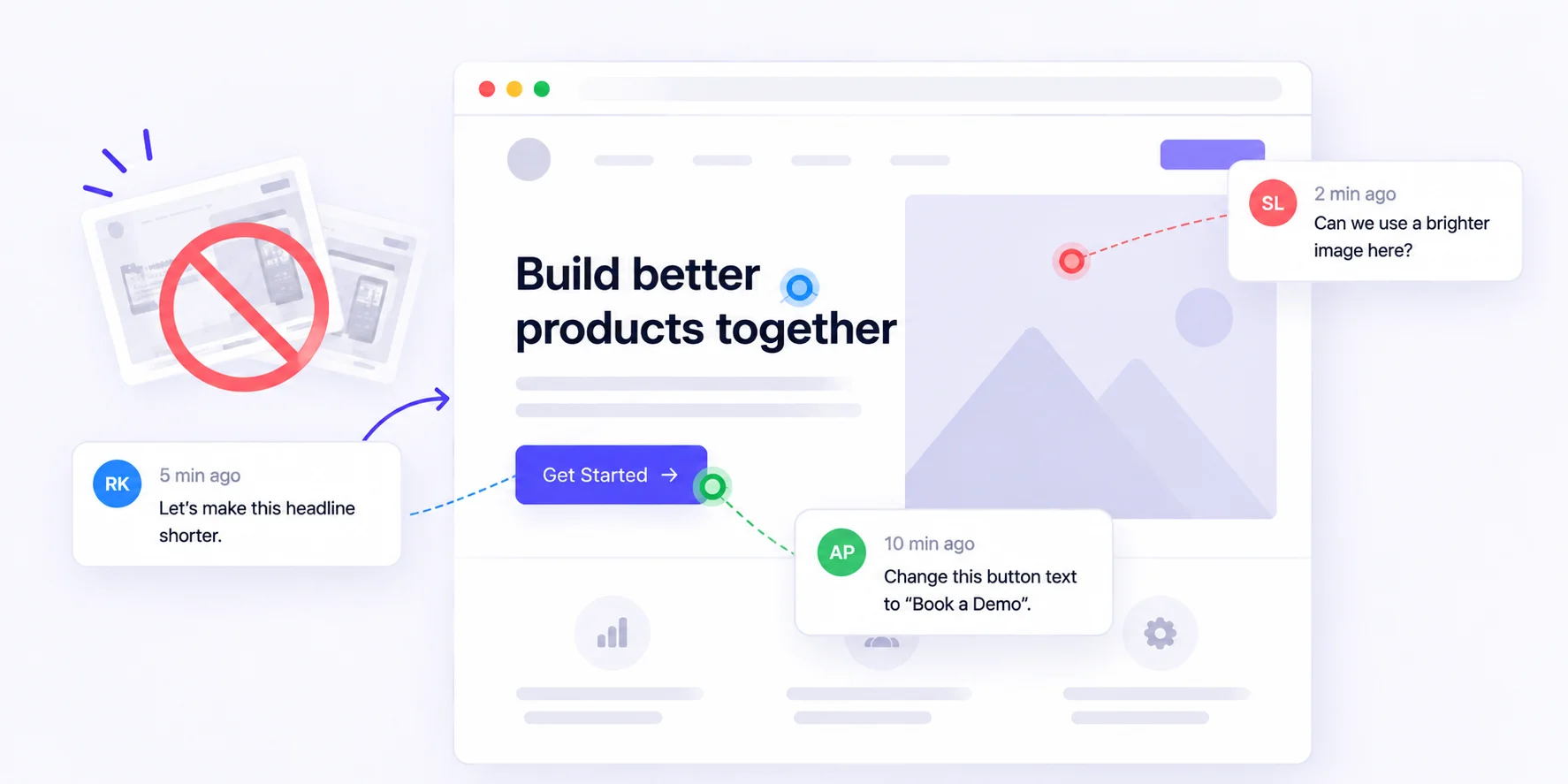
To collect client feedback on a live website without screenshots, send your client one review link that opens the real page. They click the exact element they want changed and type a note. The page URL, browser and screen size attach to that note on their own, so nothing gets lost.
That’s the short answer. The longer one matters too, because the tool is only half the job. Most messy feedback rounds go wrong before the client clicks anything. Nobody told them what to check, where to check it, or when to stop. This guide covers both halves: why screenshots slow teams down, and a five-step process you can reuse on every project.
Why Screenshots Make Website Feedback Harder
A screenshot is a copy of the problem. A comment on the live page is the problem itself. That difference shows up in four ways:
- No address. A cropped image rarely shows the URL. Your developer opens six pages to find the one with the “wrong” heading.
- No device details. “The button is cut off” could mean an iPhone in Safari or a narrow laptop window in Chrome. The screenshot won’t say which.
- One frozen moment. Dropdown menus, sliders and form errors change as you use them. A still image shows the result, not how to get there.
- Too many inboxes. Images arrive by email, WhatsApp and Slack, often for the same page. Sometimes two of them contradict each other.
The result is the back-and-forth everyone hates: “Which page?” “Which phone?” “Is this still an issue?”
How to Collect Client Feedback on a Live Website: 5 Steps
1. Decide what this round is for
Before you send anything, pick one focus. An open “let us know what you think” invites everything from logo colour to a new sitemap. Focused rounds work better:
- Content round: copy, images, prices and contact details.
- Layout round: spacing, alignment and how pages look on phones and tablets.
- Sign-off round: launch blockers only.
Our take: one question per round beats one round with every question. Clients give sharper feedback when they know exactly what you need from them.
2. Pick how clients will review the site
There are three common ways to comment on a live site without screenshots:
- Paste-a-link review. You paste the site’s URL into a review tool and share a link. Nothing gets installed on the site. Best for client sign-off and one-off reviews. Pastel and Huddlekit work this way.
- On-site widget. You add a small script, and a feedback button appears on every page. Best for ongoing work and sites a tool can’t reach from outside. BugHerd and Marker.io are well-known widget-based options.
- Browser extension. Reviewers install an add-on and comment from their own browser. Handy for internal teams, but it’s one more thing to ask a busy client to install.
BugSmash supports both the paste-a-link route and an always-on feedback widget, so you can choose per project.
3. Send one link with a short brief
The link is the easy part. The brief turns a busy client into a useful reviewer. Keep it to five lines.
A brief you can copy
- What to review: “Home, About and Contact pages.”
- What we need: “Check that all text and phone numbers are correct.”
- What to skip: “Colours and fonts are already approved.”
- How: “Click the exact spot and leave one note per issue.”
- When: “Please finish by Thursday, 5 pm.”
4. Ask clients to pin notes, not write essays
A comment pinned to an element tells your developer exactly what to fix. Coach clients on three habits:
- One issue per comment. Five changes in one note means one gets missed.
- Say what you expected. “Should say ‘Book a Call’, not ‘Submit'” beats “wrong button”.
- Check the mobile view. Many review tools let you switch between desktop, tablet and mobile widths. Remind clients that most visitors may see the phone version first.
5. Triage, assign and close the loop
Feedback isn’t done when it’s collected. It’s done when the client sees it fixed.
- Merge duplicates and decide what’s in scope.
- Turn each comment into a task with an owner. Most tools can send tasks to Jira, Linear, Trello or ClickUp.
- Reply on the comment thread once it’s fixed, then ask the client to confirm.
- If your team uses AI coding agents, BugSmash’s MCP server lets an agent read open comments and act on them.
That final reply is the step teams skip most. It’s also the one that builds client trust.
Where BugSmash Fits
If the paste-a-link approach suits your projects, BugSmash’s live website feedback tool walks through the setup. Not sure your site builder will load? Check the supported website platforms page.
There’s a free plan to start with. The Team plan is $49/month billed yearly or $69 billed monthly, and guest reviewers are unlimited, so adding clients won’t raise your bill. Full details are on the pricing page.
FAQ
Can clients give website feedback without creating an account?
Yes, with most link-based tools. In BugSmash, reviewers open the link, add their name and start commenting. Guest commenting without signup depends on your project’s sharing settings.
How do I get feedback on the mobile version of my site?
Switch the review to a mobile or tablet width and ask the client to comment there. For final sign-off, also ask them to open the site on their own phone. Real devices can show things a resized view won’t.
Can I collect feedback on a staging or password-protected site?
Usually, yes. BugSmash’s link-based review works with public, staging and Basic Auth-protected URLs. For localhost or sites behind a firewall, use an on-site widget instead.
Is a screenshot ever the better choice?
Sometimes. If the issue lives outside the website, like how an email looks in someone’s inbox, a screenshot or screen recording is the quickest way to show it. Add the page URL and device when you send it. For anything on the page itself, a pinned comment is clearer.
How many feedback rounds should a website project have?
Two or three focused rounds suit most projects: content, layout, then sign-off. Write that number into your proposal. Extra rounds then become a conversation, not a surprise.
Conclusion
Collecting client feedback on a live website without screenshots isn’t just a tool swap. Give each round one focus, send one link with a short brief, ask for one note per issue, and close every comment with a reply.
Do that, and the “which page, which phone?” emails stop. Your clients spend less time explaining, and your team spends more time fixing.



Leave a Reply